Configuration
Everything MCEC does is configured in one of three places: the File ▸ Settings… dialog, the
mcec.settings file it writes, and the mcec.commands command table. This chapter covers all of them:
running MCEC, every Settings tab, the agent gates in mcec.settings, enabling commands, and logging.
For installing MCEC and where its files live, see Install; for the security model behind the agent gates, see Agent Safety; for the computer use tools themselves, see Agent Control.
If you want to use MCEC from a desktop agent app, see Agent Control.
In practice: enable
Allow agents to provision disposable instances, create a disposable session (Provision new… or
provision-session), and use the MCP client setup line from the handoff (or the session’s HTTP endpoint
when enabled).
Installed under Program Files, MCEC keeps its configuration under %APPDATA%\Kindel\MCEC
(mcec.settings, mcec.commands, mcec.log); a copy run from anywhere else reads its config co-located
in its own folder (see Install).
Running
Setup installs MCEC under Program Files and adds it to the Start Menu; after installation, launch it from there. MCEC runs as a normal windowed app that can minimize to a taskbar (tray) icon. Closing the main window minimizes it to the tray; double-click the tray icon to show it again, or right-click for a menu. To start hidden, check Hide Window at Startup in Settings.
Desktop agent apps connect over MCP: the client’s configuration spawns a headless MCEC process (no main window, no tray icon; the command overlay and the emergency-stop hotkey still work) and talks JSON-RPC over stdio. That transport is for MCP clients to launch — not something you run yourself from a terminal.
The installed copy (under Program Files) never serves the full agent surface: it refuses to start
the MCP/HTTP endpoint, and when an MCP client spawns it as the bootstrap server it exposes only
provision-session / end-session, because enabling agent gates in the installed configuration would
leak them enabled if a session crashed. Use session provisioning
to get a disposable, isolated copy that serves everything — click Provision new… on File ▸ Settings ▸
Agent, or let a connected agent call provision-session.
mcec.exe also has a command-line surface (built on
Terminal.Gui.Cli): --help, --version, --opencli (machine-readable
command metadata for tools and agents), and agent-guide (prints the same agent guidance the MCP server
hands connecting clients). Run these from a terminal; with no arguments mcec.exe starts the GUI as
always.
You can run side-by-side copies by copying the install directory
somewhere writable; each copy gets its own independent .settings, .commands, and .log. Use
File ▸ Exit to shut down.
Settings
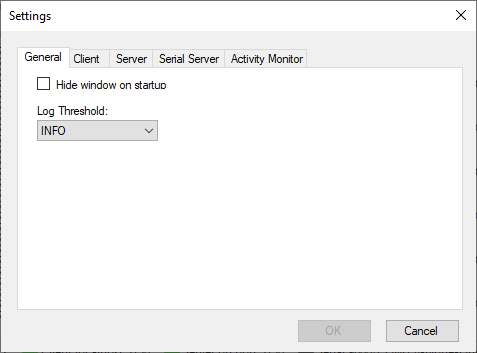
Settings are stored as XML in mcec.settings, in the %APPDATA%\Kindel\MCEC directory. Most settings
are edited from the File ▸ Settings… dialog; the agent gates (except the provisioning opt-in on the
Agent tab, below) are edited directly in mcec.settings.
The General tab:
- Hide Window at Startup: start minimized to the tray icon.
- Log Threshold: how much is shown in the main window (
INFO,DEBUG, orALL). Log files always containALLevents. - Default command pacing (ms): delay MCEC applies before executing each received command (default 0).
- Disable automatic update notification popup: when checked, MCEC still checks for updates and enables Help ▸ Install Latest Version…, but does not pop up the update dialog automatically.
The Client, Server, Serial Server, and Activity Monitor tabs configure the classic remote-control transports and are documented in Remote Control.
The Agent tab is where you let an agent (a desktop assistant or computer-use tool) work with MCEC via session provisioning:
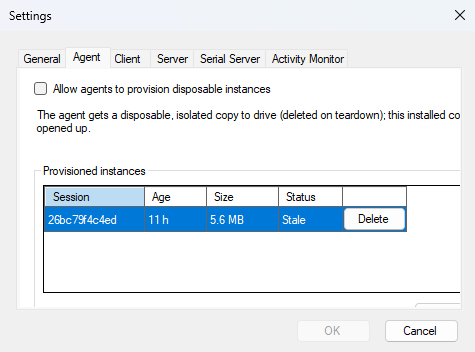
- Allow agents to provision disposable instances: the one switch to turn on for a desktop agent app. A connected agent then gets a fresh, throwaway copy of MCEC to drive, deleted when it finishes. It never opens up this installed copy.
- Provision new…: creates a throwaway copy yourself and shows a two-step handoff: the MCP client setup line, and a ready-made briefing prompt to paste to your agent (its session id, token, rules of engagement, and teardown duty), each with its own copy button.
- Provisioned instances: lists those copies (age, size, running or not), with Delete / Delete all to clear any an agent left behind. MCEC also cleans up stale ones on its own.
While an agent is driving, it may ask to use a command that is disabled (for example launch). MCEC then
shows you a consent dialog naming the command(s) and the agent’s stated reason; you can allow just those,
allow those plus any later requests, or deny (the default; a deny is final for that instance). Grants are
in-memory and die with the instance; nothing is written to your config files. See
Agent Safety.
Agent settings (in mcec.settings)
The agent surface is configured by these keys. All are off/safe by default; see Agent Safety for the full security model.
Program Files install: the normal installed copy under
C:\Program Files\…isProvisioningBootstrapOnly— it refuses to start the MCP/HTTP endpoint and, when an MCP client spawns it, serves onlyprovision-session/end-session. These keys apply to provisioned sessions and non-installed copies (a writable side-by-side copy; see Install), not to enabling the installed instance directly.
| Setting | Default | Meaning |
|---|---|---|
AgentCommandsEnabled |
false |
Master opt-in for the agent observation/actuation commands. Separate from the classic command enable. |
McpServerEnabled |
false |
Enables the localhost HTTP/JSON-RPC floor (POST /mcp). |
McpBindAddress |
127.0.0.1 |
Address the HTTP floor binds to (localhost only by default). |
McpHttpPort |
5151 |
Port for the HTTP floor. |
CommandOverlayEnabled |
true |
Shows an on-screen overlay narrating each agent command as it runs, so anyone watching can see MCEC is driving. |
CommandOverlayPosition |
Right |
Which side of the primary screen the overlay docks to. |
EmergencyStopEnabled |
true |
Arms the global emergency-stop hotkey while the agent front door could be driving. |
EmergencyStopHotkey |
Ctrl+Alt+Shift+S |
The panic-hotkey chord (a +-separated spec). |
AllowSessionProvisioning |
false |
Operator opt-in that lets an agent request a fresh, isolated MCEC instance via provision-session (and enables the Provision new… button on the Agent tab). |
AgentRecordMaxFps / AgentRecordMaxDurationMs / AgentRecordMaxFrames / AgentRecordMaxWidth |
30 / 60000 / 600 / 1280 | Safety limits for the record tool (requests above them are clamped, not failed). |
Restart the MCEC instance whose mcec.settings you edited (the provisioned copy or a non-installed
copy).
Update checks (in mcec.settings)
MCEC checks GitHub for a newer release at startup and once every 24 hours. When one is found it enables the Help ▸ Install Latest Version… menu item and pops up the update dialog. On an unattended kiosk/exhibit machine that popup can appear over the interactive application and interrupt people who should never see MCEC’s UI.
To keep the check but suppress the automatic popup, tick Disable automatic update notification popup
on the General tab of File ▸ Settings…, or set the key directly in mcec.settings:
| Setting | Default | Meaning |
|---|---|---|
DisableUpdatePopup |
false |
When true, MCEC still checks for updates and enables Help ▸ Install Latest Version… when one is available, but does not pop up the update dialog automatically. Operators update on demand from the Help menu. |
<AppSettings>
  ...
  <DisableUpdatePopup>true</DisableUpdatePopup>
</AppSettings>
Restart MCEC after changing it.
Enabling or Disabling Commands
For security, every command is disabled by default; this reduces the surface area MCEC exposes. This
applies to both the classic commands and the agent commands: in a provisioned session or non-installed
copy, an agent command runs only when AgentCommandsEnabled=true and that individual command is
enabled. (The Program Files install never serves the full agent command surface; see the note above.)
Use the Commands Window (Commands ▸ Enable and Test Commands…) to enable/disable commands and test
them. Details, including the mcec.commands XML format, are in
Remote Control. An agent that
needs a disabled command can also ask you for it live via request-command-access; you approve or deny
on-screen, and an approval enables it in-memory for that instance only (see
Agent Safety).
Agent safety
The agent gates above decide whether the agent surface is reachable. Four operator-safety features build on them: on-screen command-access consent, disposable isolated session provisioning, the global emergency-stop hotkey, and the on-screen command overlay. All are covered in Agent Safety.
Logging
Informational, debug, and diagnostic events are logged to mcec.log and shown in the main window. Installs
under Program Files write the log to %APPDATA%\Kindel\MCEC\mcec.log. Otherwise the log is written to the
directory MCEC is started from.
Every agent action is additionally logged with a loud AGENT-AUDIT: line so agent activity is impossible
to miss.