MCEC for Home Automation & Remote Control
MCEC (Model Context Environment Controller) began life as MCE Controller, and its original job is still first-class: it is a robust, battle-tested way to control a Windows PC from a home-automation or remote-control system. It runs in the background listening on the network (or a serial port) for Commands, and translates them into actions on the PC: keystrokes, text input, mouse movement, window messages, and launching programs.
Any remote control, home-control system, or application that can send text strings over TCP/IP or an RS-232 serial port can use MCEC to drive a Windows PC. It works great with systems such as Control4, iRule, Crestron, and Premise Home Control.
MCEC was originally built to integrate a Windows Media Center home-theater PC (HTPC) into a Crestron whole-house A/V system, but it is general enough for any control system that can send text to a TCP/IP port or serial port.
Looking for the agent/AI side? MCEC 3.0 is also an opt-in automation server for AI agents over the Model Context Protocol (MCP): see the Environment Controller and Configuration chapters. This page covers the classic remote-control features, which are unchanged and remain the default behavior.
For example:
- The command
netflixwill cause the Netflix application to start. - The command
maximizewill maximize the current window (equivalent to the window menu’s “Maximize”). - The command
chars:Hello World!types the text “Hello World!” as though typed on the keyboard. - The command
VK_MEDIA_NEXT_TRACKjumps the running media player (Spotify, Windows Media Player, etc.) to the next track, just as if the user pressed the “next track” key.
The set of commands MCEC supports is extensible through a configuration file (mcec.commands). If MCEC does
not natively support a function you want, you can add new commands easily.
Windows PC Control Capabilities
By default MCEC supports over 250 built-in commands for controlling a Windows PC remotely. The command engine can:
- Simulate key presses (e.g. Alt-Tab, or Win-S) with
SendInputcommands. - Simulate the mouse with
mouse:commands. - Simulate Windows messages (e.g.
WM_SYSCOMMAND/SC_MAXIMIZE) withSendMessagecommands. - Start processes (e.g. run
notepad.exe) with theStartProcesscommand. - Change window focus with the
SetForegroundWindowcommand. - Send text (simulate typing) with the
chars:command. - Pace (slow down) commands, and wait for apps to open with the
pausecommand. - Shut down, restart, sleep, or hibernate the PC with
Shutdowncommands. - Be extended to suit your needs through an
mcec.commandsfile.
Same vocabulary, two front doors. This command language is shared. A home-automation system sends these commands over TCP/serial; an AI agent can send the very same raw command strings through the MCP
send_commandtool. Everything on this page applies to both.
Transports: Client, Server, and Serial
MCEC can act as a TCP/IP client, a TCP/IP server, and/or a serial server; simultaneously if you like. All are configured from the File ▸ Settings… dialog, and each transport’s status shows on the main window’s status bar (green = connected, red = active but not connected, gray = inactive; double-click a status to toggle it).
The Client tab
When acting as a client, MCEC repeatedly tries to connect to a host and waits for commands to be sent to it. MCEC sends nothing to the host by default.
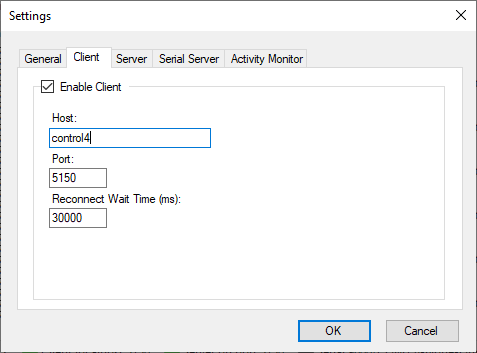
- Enable Client: enables/disables the TCP/IP client. If enabled:
- Host: the IP address or host name of the server MCEC connects to.
- Port: the port MCEC connects to.
- Reconnect Wait Time (ms): how long (default 30000 ms / 30 s) MCEC waits before retrying a dropped connection.
The Server tab
By default MCEC acts as a TCP/IP server listening on port 5150. When acting as a server, MCEC opens the port and waits for clients to connect, then processes incoming commands until the client disconnects. The server supports any number of simultaneous connections and speaks the Telnet protocol.
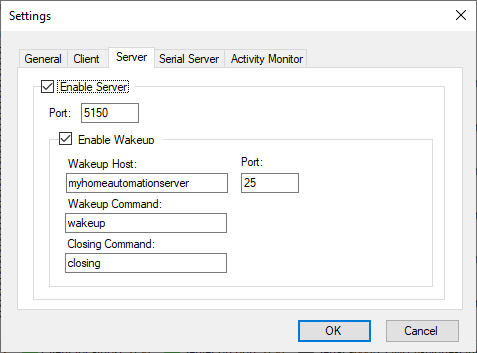
- Enable Server: enables/disables the TCP/IP server. If enabled:
- Port: the port MCEC listens on (default 5150).
- Enable Wakeup: if enabled, MCEC connects to the specified host/port on startup, sends the “Wakeup command,” and disconnects; on shutdown it sends the “Closing command.” Useful when a remote client needs to know MCEC is ready (e.g. after the control system reboots).
Restricting the Server to this machine (bind address)
The command server has no socket authentication; anything that can reach the port can send commands
that press keys, move the mouse, and start processes. By default the server binds to all network
interfaces (0.0.0.0), so it is reachable from every host on your LAN/VPN (and from anywhere the port is
forwarded). This preserves the long-standing behavior for setups driven from another machine on a trusted
network.
If nothing off this machine needs to connect (for example, another local app talks to MCEC over
localhost), restrict the server to loopback so the unauthenticated port is not exposed on the network.
Edit mcec.settings and set:
<SocketServerBindAddress>127.0.0.1</SocketServerBindAddress>
Accepted values (case-insensitive):
| Value | Binds to |
|---|---|
0.0.0.0, any, *, or empty/blank |
All interfaces (default; LAN/VPN reachable) |
:: |
All interfaces, IPv6 only (binds IPv6 Any) |
127.0.0.1, localhost, loopback |
This machine only (recommended for single-machine setups) |
::1 |
IPv6 loopback (this machine only) |
a specific local IP (e.g. 192.168.1.50) |
That interface only |
When the resolved bind is not loopback (e.g. the 0.0.0.0 default), MCEC writes a loud WARN to the
log at startup noting the command port is unauthenticated and reachable off-box, with the recommendation to
set 127.0.0.1. An unparseable value is rejected with an error in the log and falls back to loopback
(127.0.0.1) rather than silently exposing the port. Restart MCEC after editing the setting.
The Serial Server tab
When the Serial Server is enabled, MCEC opens the specified COM port (e.g. COM1) and waits for commands.
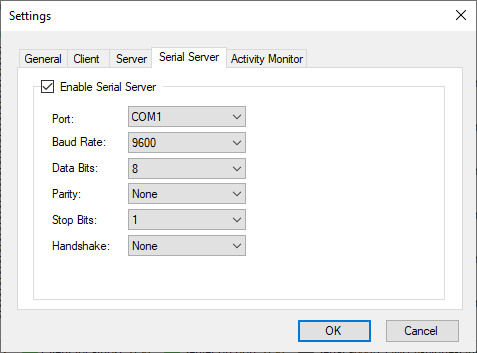
- Enable Serial Server: enables/disables the serial server (disabled by default). If enabled:
- Port: the serial port MCEC listens on (e.g. COM1).
- Baud Rate: the serial port speed.
- Data Bits, Parity, Stop Bits, Handshake; the serial port configuration.
User Activity Monitor
MCEC’s User Activity Monitor sends a command (activity by default) to your home-automation system
when a user is using the PC. It knows the PC is in use by watching keyboard and mouse activity; if the
mouse is moving or keys are being pressed, the PC is in use. This is useful for adding context to a room
occupancy sensor.
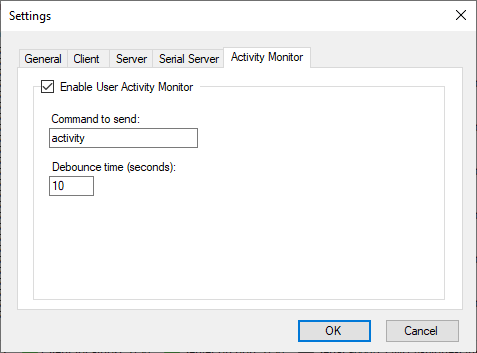
- Enable User Activity Monitor: enables/disables the monitor (disabled by default). If enabled:
- Command to send: the string sent when activity is detected (
activityby default). - Debounce time (seconds): the activity message is sent no more frequently than this.
See the Control4 User Activity Driver for an example Control4 driver that uses this feature.
Enabling or Disabling Commands
By default all commands are disabled, to reduce the surface area MCEC exposes on the network. Use the Commands Window (Commands ▸ Enable and Test Commands…) to enable/disable commands.
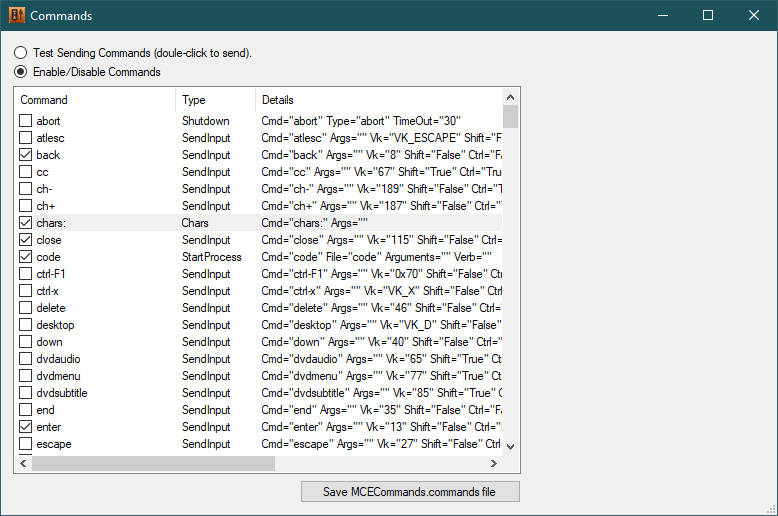
Clicking Save mcec.commands file saves changes immediately. The .commands file is not saved
automatically on exit; MCEC only writes it in response to that explicit action, so a crash or power loss
can never corrupt it mid-write on the way out.
Testing MCEC
MCEC’s built-in TCP/IP client can send commands to another instance of MCEC on the same or a different PC.
If both the Client and Server in a single instance are pointed at localhost on the same port, they can
connect to each other, an easy way to test commands.
To configure “test mode”:
- Open File ▸ Settings….
- On the Client tab, check Enable Client and enter
localhostas the Host. - On the Server tab, check Enable Server.
- Click OK.
- Open Commands ▸ Enable and Test Commands… and start testing.
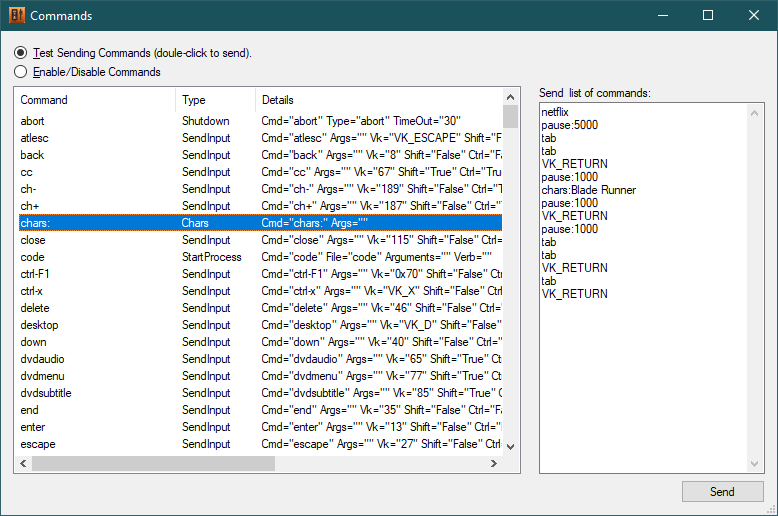
The Commands Window lists every command MCEC is configured to listen for, so you can see the full set and test them:
- Double-click any command to send it from the Client to the Server. (Be careful; double-clicking
shutdownwill literally shut down your PC.) - Type into the Send “chars:” command box and press Send to send a
chars:command. - Type a command (or one command per line) into the Send any command box and press Send.
As a quick test, send these three lines (the 2nd line is a single space):
shiftdown:lwin
x
shiftup:lwin
This pops up the Windows Quick Link Menu, just as if the user typed Win-X.
Turn on the Activity Monitor while in test mode and you’ll see events in the log when activity is detected.
Using PuTTY
PuTTY is a free terminal emulator (and Telnet/SSH client) that works well for testing MCEC.
TCP/IP: Run PuTTY, set Host Name to localhost (or the PC running MCEC), set Port to MCEC’s
listen port (e.g. 5150), set Connection Type to Raw, and click Open. Type commands and watch
how MCEC reacts.
Serial: PuTTY can also connect over serial; set the COM-port settings and choose the Serial connection type.
The Command Language
MCEC works with Commands: text strings like greenbutton, hibernate, and winkey that MCEC
listens for and acts on. Each command has a Type. When MCEC receives a command it performs an action on
the PC it is running on; the action depends on the command’s type and parameters.
Security: As of version 2.2.1, all commands are disabled by default to reduce the network surface area. Use the Commands Window to enable the ones you need.
Command Types
| Type | Purpose |
|---|---|
StartProcess |
Starts a process (executable, shortcut, or URI). Supports embedded nextCommand elements to run other commands after the process starts. |
SetForegroundWindow |
Brings the specified window to the foreground. |
Shutdown |
Shuts down, restarts, sleeps, or hibernates the host. |
SendMessage |
Sends Windows messages to windows (e.g. mcemaximize sends Media Center full-screen). |
SendInput |
Sends keyboard input as though typed on a keyboard. |
Chars |
Sends text. |
Mouse |
Sends mouse movement and button actions. |
Pause |
Pauses before the next command runs (in milliseconds). |
| Built-in | Single characters, VK_ codes, chars:, shiftdown:, shiftup:, pause:, and mcec:. |
MCEC command names (Cmd values) are not case-sensitive; VK_UP equals vk_up, and shutdown
equals ShutDown.
Simulating Keyboard Input
Any Windows virtual key code is supported by default, in the form VK_<key name>. For example:
VK_ESCAPE
VK_LWIN
VK_VOLUME_MUTE
VK_VOLUME_UP
VK_MEDIA_PLAY_PAUSE
VK_F1
A full list of virtual key codes is on this MSDN page.
Since Windows 10,
VK_MEDIA_*keys (play/pause, next/prev track, volume) are only delivered to the foreground application; this is a Windows platform behavior, not something MCEC controls. If a media key seems to do nothing, bring the target app to the foreground first (e.g. withSetForegroundWindowor a launch sequence), then send the key.
Sending chars: plus text simulates typing that text. chars:3 types 3; chars:Hello types the
letters H-e-l-l-o (including the shift for the capital). The text is typed literally, exactly as
given; there is no escape processing, so chars:\ sends a single backslash and a Windows path types
straight through: chars:C:\Users\me\file.txt types C:\Users\me\file.txt (no backslash doubling).
Unicode characters pass through as-is: chars:☺ sends ☺, chars:€ sends €.
How chars: interacts with modifier keys (shift/ctrl/alt/win) is app-dependent; for fine-grained control
use SendInput commands instead.
Sending a single character without chars: (e.g. just c) is equivalent to a SendInput command (a
single key press). There is no difference between sending a and A; use shiftdown:/shiftup: to hold
modifier keys. (The chars: command must be enabled for single-character commands to work.)
Simulating Shift, Control, Alt, and Windows keys
To hold or release a modifier key, send a shiftdown: or shiftup: command:
shiftdown:[shift|ctrl|alt|lwin|rwin]
shiftup:[shift|ctrl|alt|lwin|rwin]
For example, to type Test!:
shiftdown:shift
t
shiftup:shift
e
s
t
shiftdown:shift
1
shiftup:shift
This is the same as sending chars:Test!. The scheme also sends ctrl-, alt-, and win- chords; e.g.
ctrl-s:
shiftdown:ctrl
s
shiftup:ctrl
Mouse Commands
The general format is:
mouse:<action>[,<param>,...,<param>]
| Action | Meaning |
|---|---|
lbc / lbdc / lbd / lbu |
Left button click / double-click / down / up |
rbc, rbdc, rbd, rbu |
Same for the right button |
mbc, mbdc, mbd, mbu |
Same for the middle button |
xbc,n (etc.) |
X-button n click (mouse:xbc,3) |
mm,x,y |
Move the mouse x, y pixels relative (mouse:mm,7,-3 → right 7, up 3) |
mt,x,y |
Move to an absolute position on the primary display in 0–65535 units (mouse:mt,0,65535 → bottom-left corner) |
mtv,x,y |
Move to an absolute position on the virtual desktop in 0–65535 units (mouse:mtv,65535,0 → top-right corner) |
mtp,x,y |
Move to an absolute screen pixel; the same coordinate space the agent query/find/displays tools use. Takes real pixels and normalizes across the virtual desktop, so negative or secondary-monitor coordinates land correctly (mouse:mtp,812,562). |
hs,n |
Horizontal scroll n clicks (positive = right) |
vs,n |
Vertical scroll n clicks (positive = forward/away) |
drag,x1,y1,x2,y2[,x3,y3,…] |
Press at the first point, move through every subsequent point with the button held, and release at the last; a full press → move-path → release gesture dispatched atomically (nothing else interleaves). Coordinates are absolute screen pixels (normalized across the virtual desktop internally). Use it to resize a window by its border, move one by its title bar, drag a slider, marquee-select, or reorder (mouse:drag,400,300,700,500). Agents get a higher-level drag tool that also accepts UI Automation elements as endpoints. |
When sending mouse movements it helps to hide the MCEC window; the live log display consumes resources and can make motion jerky.
mcec: Commands
The following commands control MCEC itself. Values are returned as command=value:
mcec:ver: the version number.mcec:exit: causes MCEC to exit.mcec:cmds: lists all commands.
Defining Your Own Commands
MCEC ships with nearly 300 built-in commands. The first time it runs, it creates an mcec.commands file
containing all built-in commands with Enabled="false" on every one. You can then edit mcec.commands to
enable, override, or add commands. (Use Commands ▸ Open commands folder… to find the file.)
Deleting a built-in command from the file does not remove it permanently; MCEC re-adds built-ins whenever
it saves, but with Enabled="false", which is functionally equivalent to deleting them.
File Format
The file is XML and must include the headers. Commands are defined within the <commands> element:
<?xml version="1.0"?>
<mcecontroller xmlns:xsd="http://www.w3.org/2001/XMLSchema" xmlns:xsi="http://www.w3.org/2001/XMLSchema-instance" version="3.0.0">
  <commands xmlns="http://www.kindel.com/products/mcecontroller">
    ...
  </commands>
</mcecontroller>
Whenever mcec.commands changes it is reloaded; no restart needed. The general form of a command is:
<type Cmd="text to trigger on" Args="optional args" ... />
Case sensitivity: XML element and attribute names are case-insensitive (ctrl = Ctrl), and the
Cmd value is case-insensitive (MonitorOff = monitoroff). Some attribute values are case-sensitive;
true/false must be lowercase, and in SendInput, Ctrl="true" works but Ctrl="False" does not.
Do not define a command whose name is a single character; it interferes with single-character key presses.
Nesting
Commands can chain by nesting elements. Nested commands run after the started application begins processing window messages. For example, launch Notepad, wait 1 second, then type text:
<StartProcess Cmd="notepad" File="notepad.exe">
    <Pause Args="1000"/>
    <Chars Cmd="test" Args="this is a test." />
</StartProcess>
SendInput Commands
SendInput commands simulate key presses. Any combination of shift, ctrl, alt, and left/right Windows
keys can accompany any virtual key code. SendInput accepts single characters (e.g. x or ` ), hex
codes (e.g. 0x2a), decimal codes, or VK_ names. Under the covers the Windows SendInput()` API is used;
keystrokes always go to the foreground window.
<SendInput Cmd="mypictures" vk="P" Shift="false" Ctrl="true" Alt="false" />
<SendInput Cmd="winx" vk="VK_X" Win="true"/>
Each of these does the same thing (a space), illustrating the equivalent key encodings:
<SendInput Cmd="space" vk="VK_SPACE" Enabled="true"/>
<SendInput Cmd="space" vk=" " Enabled="true"/>
<SendInput Cmd="space" vk="\u0020" Enabled="true"/>
<SendInput Cmd="space" vk="0x20" Enabled="true"/>
SendMessage Commands
SendMessage commands send a Windows message (via the SendMessage() API) to the foreground window; or
to a specific window if its class name is specified. Msg, wParam, and lParam must be in decimal
(not hex).
For example, WM_SYSCOMMAND with SC_MAXIMIZE (274 / 61488) maximizes the window whose class is
ehshell:
<SendMessage Cmd="mce_maximize" ClassName="ehshell" Msg="274" wParam="61488" lParam="0" />
Other useful examples:
<!-- WM_SYSCOMMAND, SC_SCREENSAVE -->
<SendMessage Cmd="screensaver" Msg="274" wParam="61760" lParam="0" />
<!-- WM_SYSCOMMAND, SC_MONITORPOWER, 2 = off, -1 = on -->
<SendMessage Cmd="monitoroff" Msg="274" wParam="61808" lParam="2" />
<SendMessage Cmd="monitoron"  Msg="274" wParam="61808" lParam="-1" />
See the MSDN WM_SYSCOMMAND docs for more.
StartProcess Commands
StartProcess commands start programs and support chaining via nested command elements (the first embedded
command runs after the app starts processing window messages).
<StartProcess Cmd="code"    File="code" Arguments="foo.cs" />
<StartProcess Cmd="tada"    File="C:\Windows\Media\tada.wav" Verb="Open" />
<StartProcess Cmd="term"    File="shell:AppsFolder\Microsoft.WindowsTerminal_8wekyb3d8bbwe!App" />
<StartProcess Cmd="netflix" File="shell:AppsFolder\4DF9E0F8.Netflix_mcm4njqhnhss8!Netflix.App" />
Shutdown Commands
<Shutdown Cmd="shutdown"  Type="shutdown" Timeout="30"/>
<Shutdown Cmd="restart"   Type="restart"/>
<Shutdown Cmd="abort"     Type="abort"/>
<Shutdown Cmd="standby"   Type="standby"/>
<Shutdown Cmd="hibernate" Type="hibernate"/>
SetForegroundWindow Commands
The SetForegroundWindow command sets a process’s main window to the foreground:
<SetForegroundWindow Cmd="activatenotepad" AppName="Notepad"/>
AppName is the “friendly process name” of an app (the name shown in Task Manager’s Details tab). MCEC
uses GetProcessesByName and picks the first process that has a main window.
Note: the
ClassNameattribute is mis-named and preserved only for backwards compatibility. Since Windows Vista, one app cannot set arbitrary windows of another app to the foreground.
Chars Commands
<Chars Cmd="foo" Args="bar"/> defines foo so that receiving foo types bar, exactly as if
chars:bar had been received.
Pause Commands
<Pause Cmd="pause3sec" Args="3000"/> pauses 3 seconds, the same as sending pause:3000. Pause delays add
to any delay from the Default command pacing setting.
Disabling All Internal Commands
To force MCEC to listen only to commands defined in mcec.commands, create the registry key
HKEY_LOCAL_MACHINE\SOFTWARE\Kindel\MCE Controller and set the DWORD value DisableInternalCommands to
anything other than 0. (The “MCE Controller” key name and the Kindel Systems fallback are kept for
back-compat.) This is a machine-wide setting affecting all instances of MCEC.
Usage Notes (Media Center)
mcestartlaunches Media Center and maximizes it. To skip the maximize, remove the embeddednextCommandelement from themcestartcommand inmcec.commands.- For MCEC to control Media Center, Media Center must be the foreground window. Use
mceactivateto bring it forward if it’s already running, or just usemcestart. greenbuttonis often better thanmcestart; it’s the equivalent of the green button on a Windows remote and always goes to the Media Center Start screen (but does not maximize the window).
More Examples
See Example Commands for community-contributed mcec.commands recipes (Netflix,
HDHomeRun, Media Center, window tricks, and more).